In my lab I was running prechecks for the VCF 9.1.1 upgrade when vCenter sign-ins started failing. vmon’s health check on the Sign-in Service (STS) failed and it force-restarted the service. On one vCenter it took about 15 minutes to come back, which is a long time to stare at a login page hitting refresh every few seconds!
This is what I found in the logs:
<sts> Recover from service api health check failure. Fail count 0, calling ServiceFailRecover
It wasn’t the STS service…
RAM Allocation Issue
All three of my vCenters are standard Small sized 9.1.1 appliances with 21 GB of RAM as it’s only managing 3-5 hosts and no more than 100 VMs in any of them. If you log into the vCenter and run cloudvm-ram-size -l you’ll get the per-service allocations which add up to about 35GB, which is 172% of the RAM in the box. The memory allocation was identical on all three.
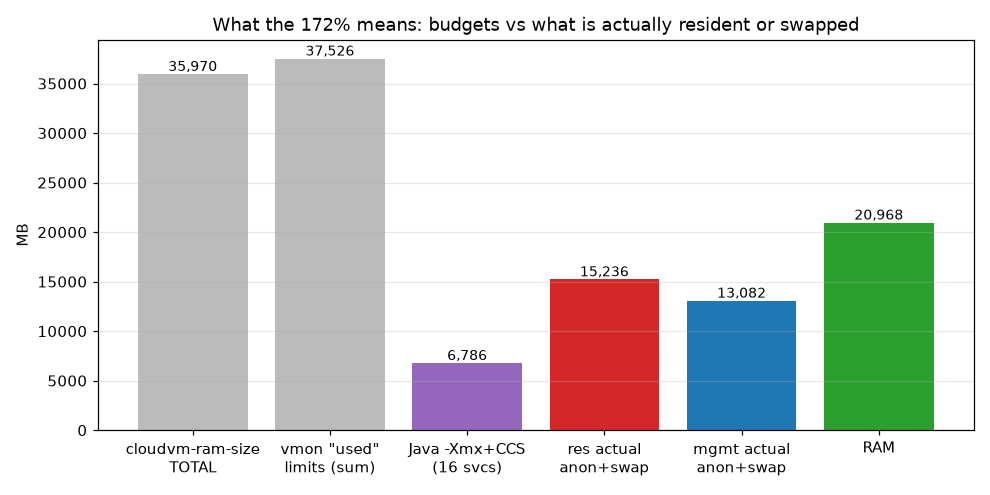
That command are the the memory budgets, not the actually used amount of RAM per service. Nothing enforces the budget, and what the services actually use was between 12 to 15 GB, so on paper it all fits without swap!
Yet all three vCenters were carrying 5GB to 8GB of swap. Quite honestly a shipped appliance shouldn’t need swap just to run normally, so for me this is something to investigate with engineering, regardless of what it does or doesn’t do to STS.
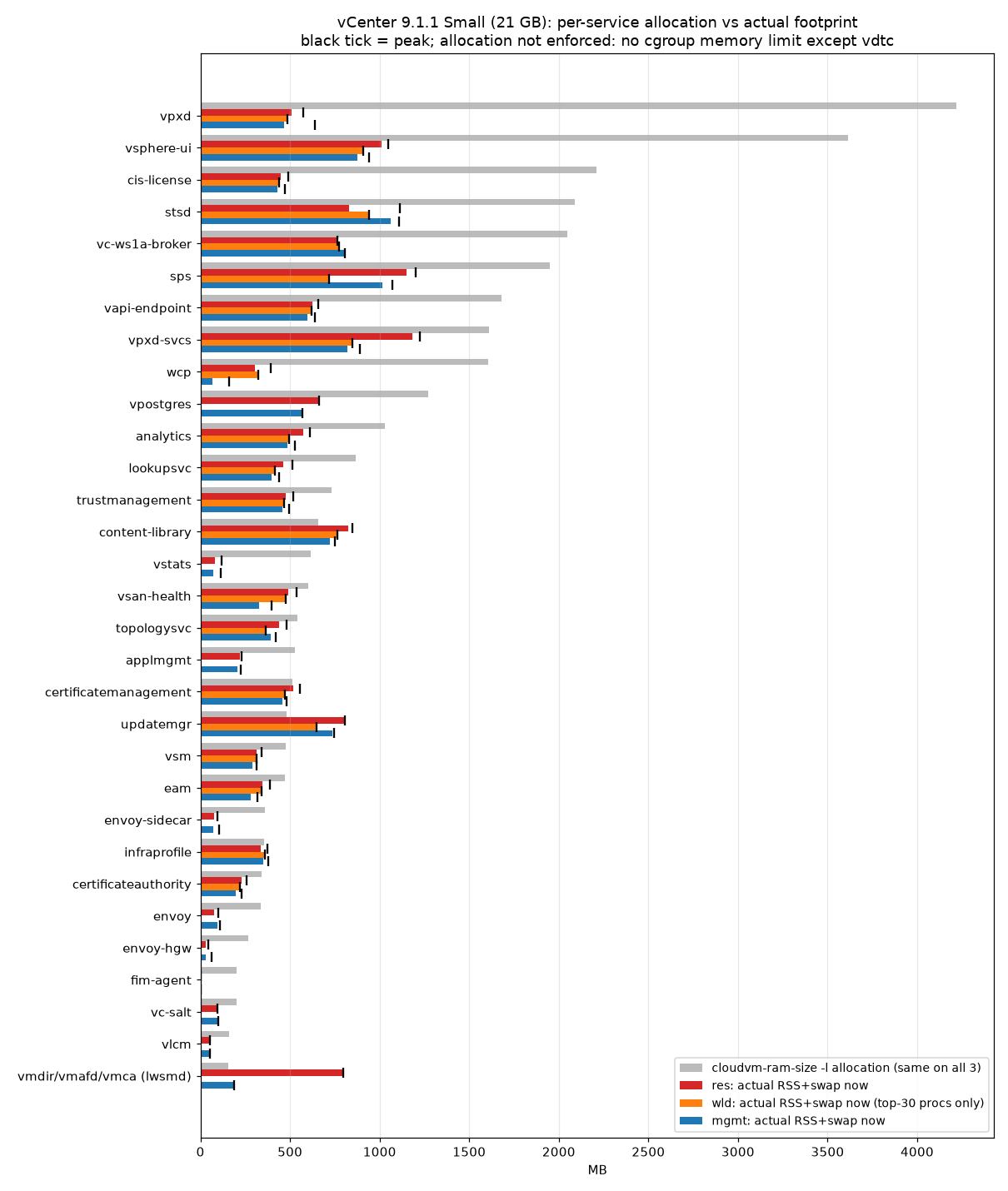
Interestingly the budgets are way past anything the services used. For example the vpxd is sized for a scale my three-to-five host clusters will never see!
| Service | Allocated (MB) | Highest actual seen (MB) |
|---|---|---|
| vpxd | 4,219 | 640 |
| vsphere-ui | 3,614 | 1,047 |
| cis-license | 2,208 | 492 |
| stsd | 2,088 | 1,115 |
| vc-ws1a-broker | 2,048 | 808 |
| wcp | 1,605 | 392 |
There were some services what were under-allocated memory such as updatemgr (481MB allocated, but needing 807MB) and content-library (658MB allocated versus an active use of 849MB) which was similar in every vCenter.
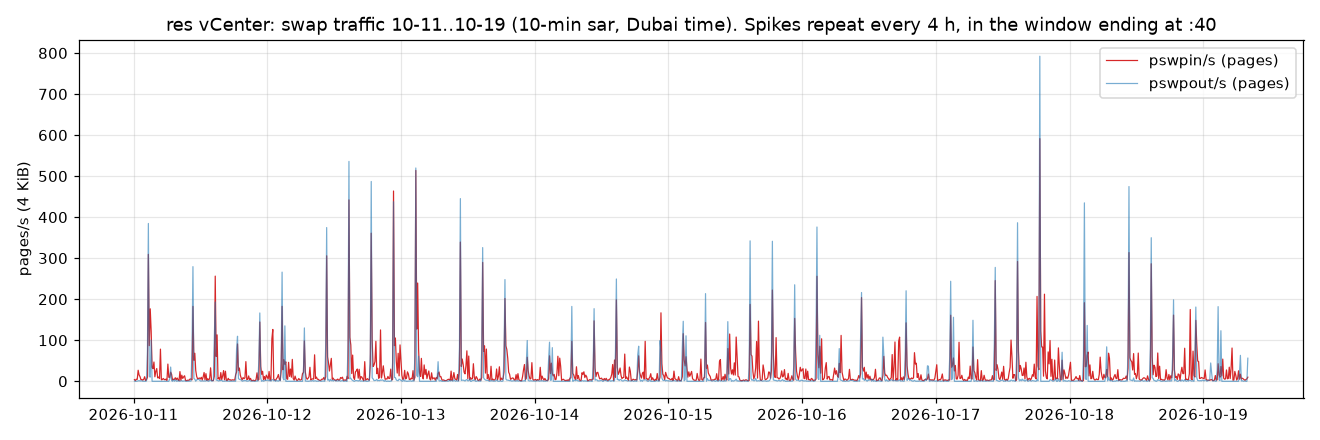
So where does the swap come from? I’m unsure but there seems to be a regular spike every 4 hours where the fim-agent service gets quite busy.
How to check your vCenter
Before you start an upgrade, check these on the vCenter:
- Compare the
cloudvm-ram-size -ltotal with the appliance RAM - Check how much swap the appliance is using. Mine was between 5GB and 8GB.
- Look in vmon.log for
<sts> Recover from service api health check failureandForce killlines
Getting Through the Upgrade
What helped was restarting STS on a quiet appliance. I restarted the STS service on the vCenters and the service became healthy in under 20 seconds and the swap decreased. Under load the same restart took about 10 minutes so make sure your change window is generous!
So before upgrading a Small vCenter 9.1.1:
- Restart STS while it’s idle, especially if the appliance has been up for weeks. My resource vCenter had been up for over a month and had more swap than the management vCenter that was only up over a day.
- Run prechecks and HCL checks one after the other, not at the same time
- Don’t bother hand-tuning service heaps. Shrinking the oversized budgets won’t remove the swap by itself, and KB 320871 says vCenter updates may revert manual changes anyway
I haven’t tested whether a Medium vCenter avoids all this but it would make sense to run a Medium sized vCenter as a minimum in a Production environment since in a VCF world there’s a lot more API calls being made to vCenters than in years gone by.
Disclaimer!
This was three Small vCenter 9.1.1 appliances in my lab. As always, test this in a non-production environment first.
FYI… I had Grok create the graphs for me but the analysis is my own.