In a VMware Cloud Foundation (VCF) environment, you typically have many NSX Manager and NSX Edge nodes deployed, especially as you scale across multiple sites, availability zones, or clusters. Maintaining consistent security settings across those nodes is critical.
One overlooked setting is password expiration on NSX local accounts (root, admin, audit). By default, NSX enforces a 90-day password expiry for both Manager and Edge nodes.
While 90 days may be acceptable for many environments, your corporate security policy might require a longer or shorter rotation period (e.g. 30 days, 180 days, or more). Manually updating this on every NSX node can be tedious, error-prone, and easy to forget.
Certainly in my lab environment password expirations can cause issues if I haven’t used the lab in a while so I usually set the password expiry to something more practical.
That’s why I developed a PowerShell script to automatically read and optionally set the password expiry on the connected NSX Manager appliance and the discovered Edge nodes in a VCF deployment. If you want to cover every NSX Manager appliance in a manager cluster, extend the script to iterate the cluster-node user endpoint as well.
Why Enforce Password Expiry?
- Good security hygiene: Even strong passwords can be leaked, cracked, or reused. Rotating them periodically reduces the window of exposure
- Policy alignment: Many organizations require password rotation periods (e.g. 30, 90, 180, 365 days) as part of risk and compliance frameworks
- Consistency: A script ensures all nodes share the same expiry configuration, avoiding drift or misconfigurations
- Scalability: As your footprint grows, manual steps don’t scale and automation is key for policy enforcement.
That said, modern thinking (e.g. NIST 800-63) suggests that forced periodic rotation can sometimes be counterproductive (users choose weaker passwords, etc.). So your rotation policy should be balanced with other security controls (MFA, logging, intrusion detection). However within an enterprise environment, many security teams still require periodic rotation, especially for critical infrastructure accounts.
NSX’s Password Expiry Mechanism
The usual method is to log into each NSX Edge and manually set the password expiry for each account. You can find the details here.
# On each NSX Edge:
vcf-edge-01> get user admin password-expiration
Password expires 90 days after last change

vcf-edge-01> set user admin password-expiration 9999
vcf-edge-01> get user admin password-expiration
Password expires 9999 days after last change
Thankfully there’s a way to do this via the NSX API. NSX Manager and Edge nodes support a REST API field called password_change_frequency on the node user resource (for internal accounts). This sets how many days until the password must be changed
Default is 90 days.
You can set it to a large number (e.g. 999, 9999) if your policy allows. Often these large numbers should only be considered in a home lab where security is a little more relaxed.
The NSX API also supports 0 for no password expiration. In the current script, -SetDays 0 is the report-only/default behaviour, so use a positive value such as 365 or 9999 unless you alter the parameter handling.
The API endpoints for Manager vs Edge differ slightly:
- Manager: GET /api/v1/node/users/{userId} and PUT /api/v1/node/users/{userId}
- Edge: GET /api/v1/transport-nodes/{id}/node/users/{userId}, or alternate templates depending on version
Because Edge nodes may not always expose the same path, the script includes fallback logic to try multiple template patterns.
Set-NSXPasswordExpiry.ps1
To output the current expiry settings you simply run it with the endpoint and an account with permissions to change password settings
.\Set-NSXPasswordExpiry.ps1 -NSXManager vcf-nsx.wynner.ie -Username admin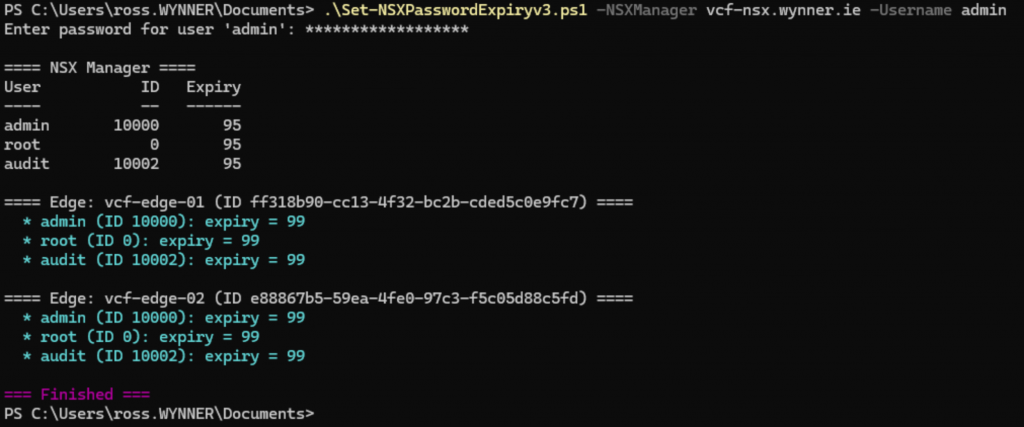
To change the settings there’s a flag called -SetDays which will set a value globally
.\Set-NSXPasswordExpiry.ps1 -NSXManager vcf-nsx.wynner.ie -Username admin -SetDays 365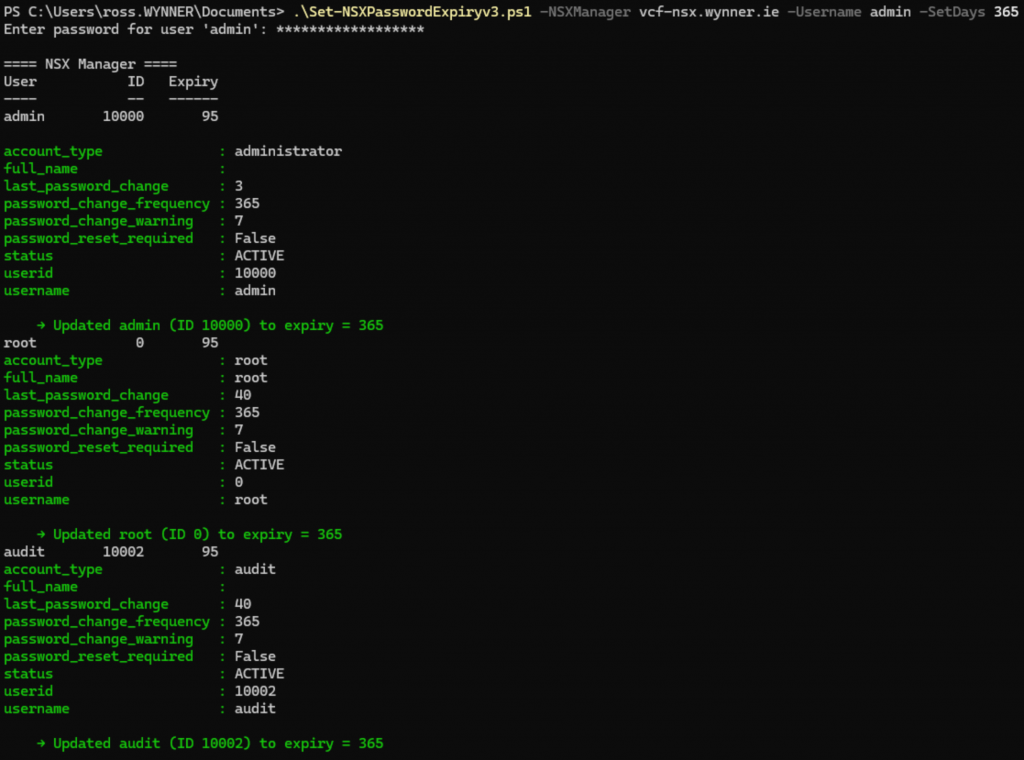
Finally if you want to only alter the NSX Manager or just the edges there’s two flags that limit the scope
.\Set-NSXPasswordExpiry.ps1 -NSXManager vcf-nsx.wynner.ie -Username admin -ManagerOnly
.\Set-NSXPasswordExpiry.ps1 -NSXManager vcf-nsx.wynner.ie -Username admin -EdgeOnly
If your company sets local accounts beyond root, admin, and audit then you can alter the line below and add in the account name:
$userMap = @{ "root"=0; "admin"=10000; "audit"=10002 }
The current branch version of the script is here:
https://github.com/wynner/scripts/blob/main/vcf-scripts/Set-NSXPasswordExpiry.ps1
The pinned permalink for the version I tested is here:
Disclaimer!
- This script has been validated on PowerShell 7.5.3 (the latest stable release at time of writing) and works with NSX 9.0
- This approach assumes that the NSX accounts have not yet expired. If the accounts are already expired, the scripts or API calls may fail.
- Ensure that the target NSX Manager and Edge nodes are reachable and responsive before executing the automation
- Always test in a non-production or lab environment first
- Log all operations, and if possible, include rollback logic (e.g. skip nodes you can’t authenticate with, alert on failure)
- Confirm that this automation does not conflict with SDDC Manager workflows or future upgrades in your VCF environment